|
DECOCHEK – HELP FILE Welcome to Decochek –Optimiser, the most flexible decompression software available to Technical Divers. Please read the following text to advise you on how best to use the program.
The program can be downloaded from
www.Decochek.com
and installed on the computer you wish to use
it on. The program will be limited to 40 metres depth until
activation. The program needs to be registered to allow full
activation. Registration is done by
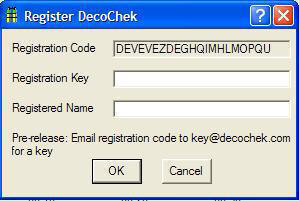
Next, add your name and press Register. Registered programs will instantly have the depth limitation removed. Registration codes are valid only on the computer they were created for. If you need to reinstall the program on the same computer simply use the same registration code as before. Certain hardware changes post Decochek install may affect the registration validity, please email key@decochek.com for advice. Users should check www.Decochek.com regularly to obtain the most up to date version of the program. Okay, lets plan some dives. Dives can be created from scratch or dive templates can be accessed using the Open Dive option in the drop down FILE menu. Let us start with the Create New Dive option.
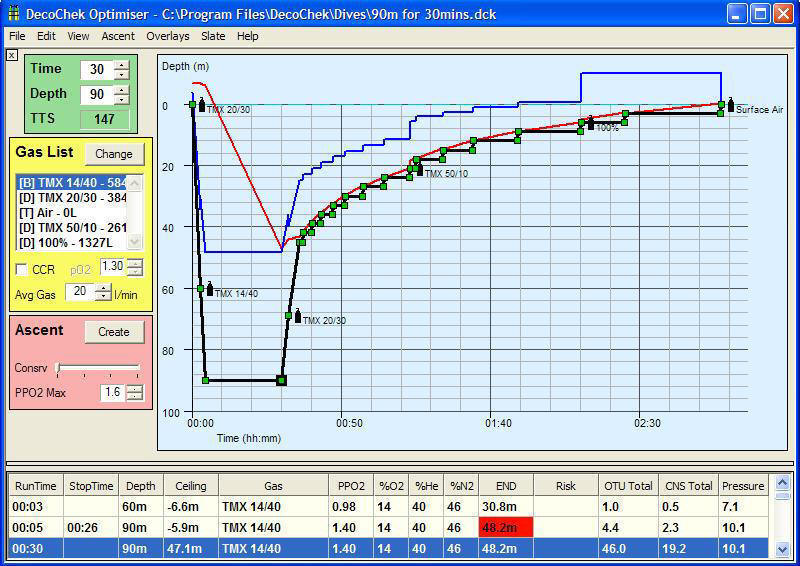
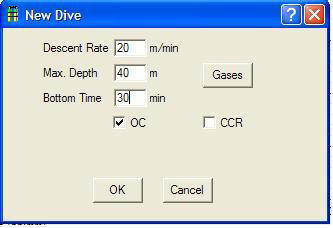
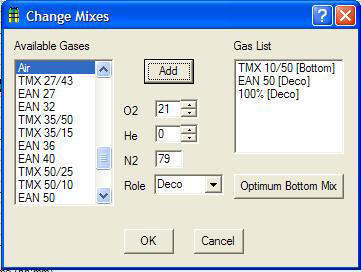
o Use the File/New menu command, (or CTRL+N) to bring up the New Dive Dialog. o Select your initial depth, descent rate and bottom time, also whether the dive will be predominantly using Open Circuit (OC) or Closed Circuit (CCR) equipment. Next, click on the Gases button to create the breathing mixtures you wish to use during the dive. To add a new gas, choose the gas from left side Available Gas menu. Highlight the gas you want and then click on ADD. If the exact gas you want is not in the list, click the closest one and change the values to suit using the controls available. Once you are happy with the mixture click ADD to place gas in GAS LIST on right hand side menu. If you are unsure what gas to use for the planned depth please consult your Agency Training Materials or simply click on the Optimum Breathing Gas button. The optimum gas chosen will then be placed in the GAS LIST automatically for you. Each mixture in the GAS LIST needs to be assigned a Role; either: None, Bottom, Travel or Deco. Gases should be assigned a role at this stage or the program will offer suggested roles by default, simply check the suggested Role to reflect what you intend. When all the gas choices are made; finish by clicking the OK button, the program will now create the decompression plan. o Many profiles have been added to the Dive Template file; this is accessed by using the OPEN DIVE option in the FILE menu. Find the dive template that closest suits your needs. Simply edit the relevant point in the graph to match your specific Depth and Bottom Time requirements. 2. Edit the Dive Points o Once the ascent has been planned you may drag around each point by selecting and either moving each point where desired using the mouse or using the UP,DOWN, LEFT,RIGHT arrow buttons to modify each point individually. Each change you make to the dive plan will modify the decompression stop plan immediately you make the changes. You can view the ascent plan information in the bottom pane, we call this area
o The Grid. Clicking on any box-point within the graph selects it, a selected point will be highlighted by a bold black border. The left-hand side information panel (yellow box) updates to reflect selected values such as breathing mix used and litres of each breathing mixture consumed. o Change the values in the information panel (Green Box) for fine control of points with UP or DOWN keyboard button o Press the 'Delete' key (or the 'Edit / Delete Point' menu option) to delete the currently selected point. o Press CTRL+D (or the 'Edit / Delete Onward' menu option) to delete all points after the currently selected point. o Increase and decrease the size of the graph to suit, using the 'splitter' at the bottom, and switching the information panel off and on with the top-corner button. o You can switch the Grid Display (along with the Ceiling and END displays) on and off from the 'View' menu.
3.
o Click on a gas in the information list box to change the mixture for the currently selected point. o Double-click on a gas to edit the mixture, or click the Change Button to add more mixtures. Any gas within the Yellow box will be used during dive calculations. 4. Create an Ascent
5.
Any
part of the Graph can be selected by highlighting the required
point. To create an Ascent plan click the Create button (Pink
box). A dialogue box will appear asking where to create the ascent
from, either from the Current Point or the Last Point.
Another option in this dialogue box is Track Back, select
Track Back if you are Cave diving and a mirror of the current
dive profile needs to be followed with decompression stops inserted
as they are needed.
o Use the Conservatism slider to add additional conservatism. This may be useful if the dive includes additional workload, takes place in cold water or you as a diver are additionally pre-disposed to getting DCS. Pushing the slider all the way to the right will pad decompression stops the most. o Select your maximum decompression PPO2 value for the total ascent or just a portion of the ascent; most users will maintain a value of 1.6 Po2 but lower values may be advisable to stay within CNS clock limits. o You can change the default last stop depth using the 'Ascent / Last Stop' menu option. Options are 3m, 4m, 4.5m, 5m, 6m. o Select the point you wish to ascend from (this needn't necessarily be the last point - you can ascend earlier if you like) and click the 'Ascend' Button. 6. Edit the Ascent, repeat Ascent o You can change points and edit gases as before. If, for instance, an ICD risk is shown, hover over the relevant point and make a note of the recommendation. Change the gas to suit, then create a new ascent from that point onwards.
o
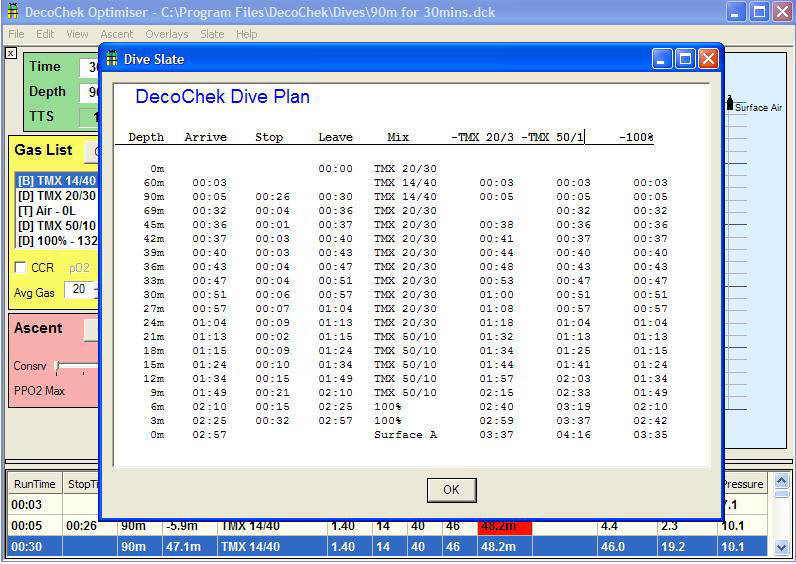
o Once 'out of the water', you can create subsequent dives, either by adding points manually, or using the 'Ascent / Next Dive' menu option (CTRL + T) o Finally, use the 'Slate' menu to view or print the slate. The text in the 'View' window is selectable, so can be copied-and-pasted into your favourite text editor for formatting how you prefer.
Users with specific questions are welcome to ask them on the DecoChek web forum coming soon. Go to www.Decochek.com and join the discussion group or simply read the archives for additional tips and advice. Please read the Decompression Tips article in this help file to help make your dive plans as stress free as possible. Safe Diving. |
 installing
and opening the program then accessing the drop-down menu entitled
HELP. Click on Register. Your computer will have
assigned a unique number that should be sent via email to
installing
and opening the program then accessing the drop-down menu entitled
HELP. Click on Register. Your computer will have
assigned a unique number that should be sent via email to
 Creating
a New Dive
Creating
a New Dive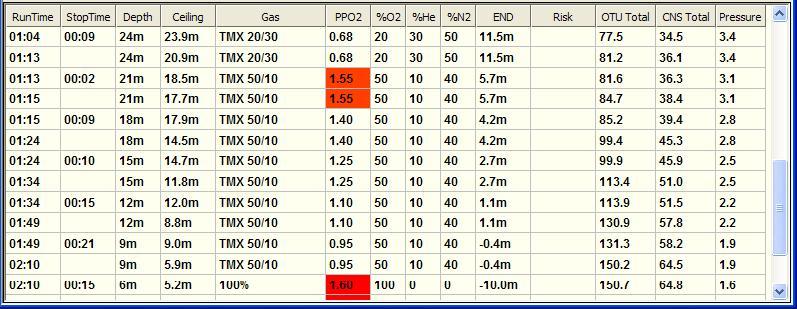
 Edit
the Gases
Edit
the Gases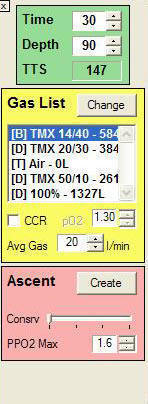
 Selecting
the Bail-Outs option from the Ascent drop down menu will add
information to the Slate plan regarding additional stop time
required if any of the selected decompression gases became
unavailable.
Selecting
the Bail-Outs option from the Ascent drop down menu will add
information to the Slate plan regarding additional stop time
required if any of the selected decompression gases became
unavailable.